Free screenshot generator
App Store Screenshots In Minutes, Not Hours
Drag-and-drop editor for creating professional app store screenshots. All device sizes, beautiful templates, batch export. Completely free, no watermarks.
10,000+ screenshots created · 100% free — no watermarks · No sign-up required
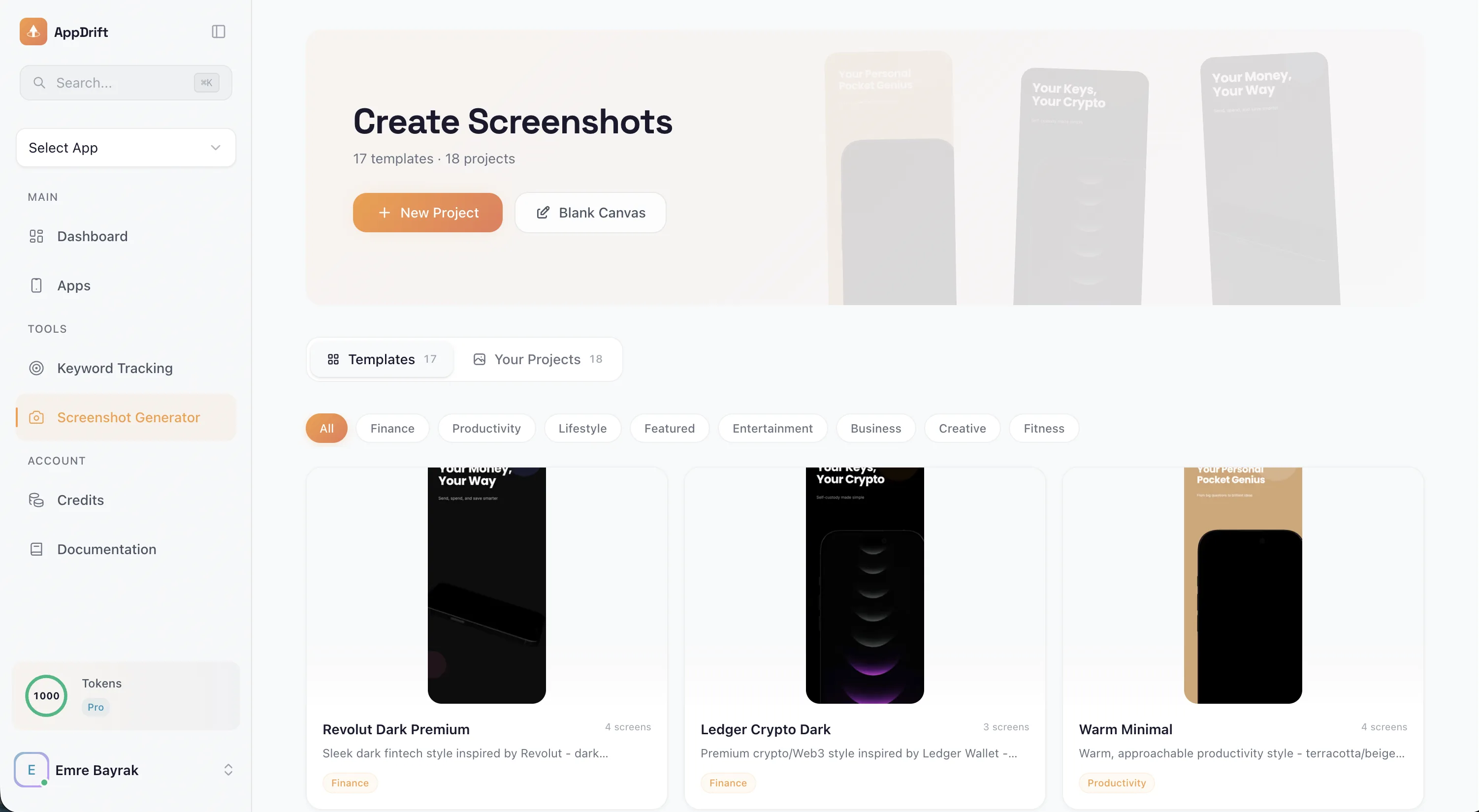
What is this? AppDrift's app screenshot generator is a free online tool for creating App Store and Google Play screenshots. Upload your app screens, place them in device frames for every required size — iPhone 6.9" and 6.7", iPad Pro, and Android phones and tablets — add text overlays and backgrounds, then batch-export store-ready images. No watermarks, no sign-up, and no design skills required.
How it works
Three steps to beautiful screenshots
From blank canvas to store-ready in minutes.
Choose a Template
Pick from dozens of professionally designed layouts for any device.
Customize Your Design
Drop in your screenshots, edit text, adjust colors to match your brand.
Export & Publish
Download in all required sizes or push directly to your app store listing.
Device sizes
Every size you need
Pixel-perfect dimensions for App Store and Google Play. No more guessing.
Features
Everything you need
A complete screenshot editor built for app developers.
Every Device Size
iPhone 6.9", iPad Pro, Android phones and tablets — all required sizes in one place.
Brand-Ready Templates
Professional layouts that make your app look like a million bucks. Fully customizable.
Batch Export
Export all device sizes at once. No more resizing screenshots manually.
Layer Editor
Full drag-and-drop editor with text, shapes, backgrounds, and device frames.
Pixel Perfect
Exact pixel dimensions required by App Store and Google Play. No guesswork.
AI Backgrounds
Generate stunning gradient and pattern backgrounds that match your app’s color scheme.
Get ASO tips that actually work
Free ASO checklist + weekly insights from 5,000+ developers optimizing their listings. No spam.
Launching an app? The one-time Launch Pack ($19) does metadata, 10 locales & 30 days of rank tracking — no subscription.
Beyond screenshots
Your screenshots are 30% of ASO. Here’s the other 70%.
Screenshots get the click. Metadata, translation, and store monitoring get the install — and the long-term ranking. AppDrift handles all of it.
AI metadata generation
Generate ASO-optimized titles, descriptions, and keywords in 60 seconds. Apps using it see 3× more downloads.
Optimize my metadata →Translate to 40+ languages
65% of App Store revenue comes from non-English markets. Cultural adaptation, not word-for-word translation.
Reach global users →Track keyword rank
See your rank for every tracked keyword across 150+ countries. Daily updates, alerts on movement.
Track my keywords →24/7 store monitoring
Get alerts when ratings drop, rankings regress, or competitors update their listing. Email, Slack, Discord.
Set up monitoring →One-click publishing
Push your metadata, screenshots, and translations to App Store and Google Play across 150+ countries.
Publish to stores →See the full ASO platform
AppDrift is more than screenshots — it’s a complete ASO suite. Compare us to Sensor Tower, AppTweak, AppRadar.
Compare ASO tools →Free forever · Basic $9.99/mo unlocks keyword tracking, store monitoring, A/B testing · 30-day money-back guarantee.
FAQ
Common questions
Everything developers ask before creating their first screenshot set.
Yes, the screenshot generator is completely free with no watermarks and no limits. You can create unlimited screenshots for all device sizes without a paid plan.
All current App Store and Google Play required sizes are supported, including iPhone 6.9”, iPhone 6.7”, iPhone 6.5”, iPhone 5.5”, iPad Pro 13”, iPad Pro 12.9”, and standard Android phone and tablet sizes.
Yes. Our batch export feature lets you export your design across all selected device sizes and languages in one click. This saves hours compared to manually resizing each screenshot.
Not at all. The drag-and-drop editor lets you choose templates, upload your app screenshots, customize text and colors, and export — no Photoshop or design experience needed.
Yes. You can duplicate your design for different languages, update the text for each locale, and export all language versions at once. Combined with our AI translation, you can localize screenshots into 40+ languages.
Start creating screenshots now
Free forever. No credit card, no watermarks, no limits.
How to Create Professional App Store Screenshots
App store screenshots are the single most influential factor in whether someone downloads your app. Research consistently shows that around 80% of users make their download decision without ever reading your app description — they scroll through your screenshots, form an impression, and either tap "Get" or move on. That makes your screenshot gallery the most valuable real estate in your entire app listing.
A great app store screenshot does more than show your UI. It tells a story. The best-performing screenshots combine a clean device frame, a concise text overlay that highlights a benefit (not a feature), and a background that reinforces your brand identity. Think of each screenshot as a mini billboard: you have roughly two seconds to communicate why your app matters.
Screenshot Size Requirements by Platform
Both Apple and Google have strict dimension requirements, and getting them wrong means your listing looks unprofessional or gets rejected outright. Here are the sizes you need to know:
iPhone: The most common required sizes are 1290 x 2796 pixels (6.7-inch display) and 1320 x 2868 pixels (6.9-inch display). Apple requires screenshots for the largest device in each family, and the system scales them down for smaller screens. For the iPad, you will need 2048 x 2732 pixels for the 12.9-inch Pro and 1668 x 2388 pixels for the 11-inch Pro.
Android: Google Play requires a minimum of 1080 x 1920 pixels for phone screenshots. Tablet screenshots should be at least 1200 x 1920 pixels. Unlike Apple, Google is more flexible with exact dimensions but enforces a 16:9 or 9:16 aspect ratio.
Keeping track of all these sizes is tedious. A screenshot size calculator can help you verify the exact pixel dimensions for every device before you start designing.
Why Screenshots Matter for ASO
App Store Optimization is not just about keywords in your title and description. Visual assets play a direct role in your conversion rate — the percentage of people who view your listing and actually download. Apple has confirmed that the screenshot gallery is the primary driver of conversion on the App Store. Google Play runs its own A/B testing tools specifically because screenshot variations can move conversion rates by 20% or more.
When your screenshots clearly communicate your app’s value, users feel confident about what they are getting. That confidence translates into higher tap-through rates from search results, better conversion on your product page, and ultimately more downloads. If you want a deeper dive into what separates average screenshots from high-converting ones, our guide on app store screenshots that sell breaks down the psychology behind effective visual assets.
Tips for Screenshots That Convert
After analyzing thousands of top-performing app listings, a few patterns emerge consistently:
- Lead with your strongest screen. The first two screenshots are visible without scrolling in search results. Put your most compelling value proposition there.
- Show benefits, not features. Instead of "Calendar view," say "Never miss a deadline again." Users care about outcomes, not UI elements.
- Use social proof when possible. Screenshots showing ratings, user counts, or awards build immediate credibility.
- Maintain visual consistency. Use the same color palette, font family, and layout style across all screenshots. It looks professional and reinforces brand recognition.
- Test variations. Even small changes to text, background color, or screenshot order can meaningfully impact conversion. Run experiments and measure the results.
For a curated collection of real examples from top-ranking apps, check out our roundup of the 10 best app store screenshots.
Creating Screenshots with AppDrift vs. Manual Design
Traditional screenshot creation involves opening Figma or Photoshop, manually placing device frames, aligning text layers, exporting at multiple sizes, and repeating the process for every device and every language your app supports. For a typical app targeting both iOS and Android across five languages, that can mean producing over 100 individual image files.
AppDrift’s screenshot generator was built specifically to eliminate that workflow. You choose a template, drop in your actual app screenshots, customize the text and colors, and export every required size in a single batch. The entire process takes minutes instead of hours, and because the templates are designed by professionals, the output looks polished without any design expertise.
If you are also looking to optimize the rest of your app listing — titles, descriptions, and keywords — our AI metadata generator handles that side of ASO. Combined with the screenshot editor, you can go from a blank listing to a fully optimized, store-ready page in under 30 minutes.
For a complete walkthrough of dimensions, design tips, and export workflows, read our full guide on how to create perfect app store screenshot sizes.